
How to Enable Vulkan in Minecraft (July 2026) Full Guide
If you play Minecraft Java Edition and want better frame rates and more stable performance, enabling Vulkan in the latest snapshot is worth trying. Mojang introduced this graphics API switch as an experimental feature, and the process takes less than a minute once you know where to look. This guide covers everything from installation to verification so you can test Vulkan on your system right now.
What is Vulkan in Minecraft?
Vulkan is a modern graphics API (Application Programming Interface) that gives developers more direct control over GPU operations. Minecraft has traditionally used OpenGL, which works well but does not squeeze maximum performance from today’s graphics cards. When you enable Vulkan in Minecraft, the game communicates more efficiently with your hardware, often delivering higher frame rates and reduced stuttering.
Contents
Mojang is switching Minecraft to Vulkan as part of ongoing performance improvements. The change affects Java Edition players using snapshots, with the 26w02 snapshot and later versions supporting the new API. This is not just a cosmetic update. Vulkan is the same technology behind many modern PC games, and bringing it to Minecraft signals Mojang’s commitment to long-term performance optimization.
For players with dedicated graphics cards like NVIDIA RTX or AMD Radeon, the benefits are most noticeable. Integrated graphics users may see more modest improvements, but Vulkan still provides better GPU utilization compared to OpenGL. The feature remains experimental, so some hiccups are possible, but Mojang has confirmed this is the direction for Minecraft’s rendering future.
Prerequisites: Installing the Minecraft Snapshot
Before you can enable Vulkan, you need to run a compatible Minecraft snapshot. Open the official Minecraft Launcher and click the “Installations” tab. Create a new installation or edit your existing one. Look for snapshots in the version dropdown menu and select “26w02” or a later version if available.
Snapshots are development versions, which means world corruption is possible. Always back up your important saves before testing. Copy your saves folder from your Minecraft directory to a safe location. This step protects months of building work from potential snapshot bugs. When you enable Vulkan in Minecraft for the first time, testing on a fresh world is smarter than risking your main save.
Once the snapshot is installed, launch it and let the game create a new configuration. Your existing settings will carry over, but Vulkan requires manual activation in the video settings menu.
How to Enable Vulkan in Minecraft (Step-by-Step)
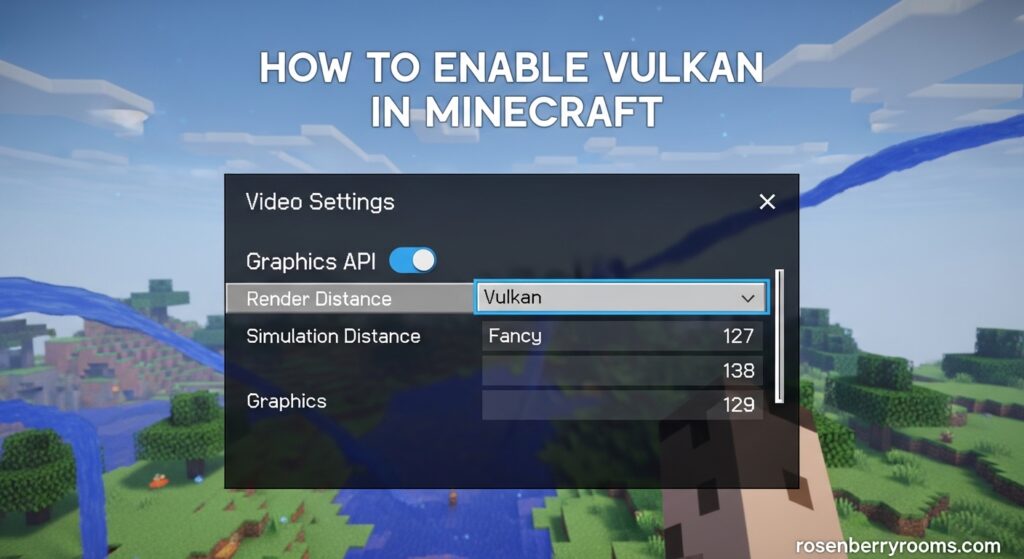
Activating Vulkan is straightforward if you know where to find the option. From the Minecraft main menu, click “Options” and then select “Video Settings.” Look for the “Graphics API” setting near the bottom of the list. Click it and choose “Prefer Vulkan” from the dropdown menu.
The complete menu path is: Options > Video Settings > Graphics API > Prefer Vulkan
After selecting Prefer Vulkan, click “Done” to apply the setting. Minecraft may prompt you to restart for the change to take full effect. Close and relaunch the game to ensure Vulkan loads correctly. Some players report that the setting sticks immediately, but a restart eliminates any initialization issues.
There are three values for this setting: Default, Prefer Vulkan, and Prefer OpenGL. Default lets Minecraft choose automatically based on your hardware. Prefer Vulkan forces the new API when available. Prefer OpenGL keeps the old renderer active. If you encounter issues, switching back to Default or Prefer OpenGL resolves most crashes.
How to Verify Vulkan is Working?
You need confirmation that Vulkan loaded successfully. Press F3 to open the debug overlay while in a Minecraft world. Look at the right side of the screen for the “System Specs” section. When Vulkan is active, you will see “Vulkan” listed as the graphics API.
If you still see “OpenGL” in that section, the setting did not apply. Exit Minecraft completely and relaunch the game. Some users report that the F3 debug screen shows the old API until they enter a new world or restart the client. Loading into a fresh world often refreshes the renderer information.
Another verification method involves watching for improved frame rates immediately after enabling the setting. If your FPS jumps noticeably in the Nether or End dimensions, Vulkan is likely working. Dedicated GPU users typically see the biggest gains in chunk-heavy areas where rendering demand peaks.
OpenGL vs Vulkan Performance in Minecraft
Community testing shows Vulkan generally outperforms OpenGL, but results vary by hardware and world type. On systems with dedicated GPUs like the RTX 4060, players report 10-20% higher frame rates in the Overworld when using Vulkan. The Nether and End dimensions show similar improvements because those areas stress the renderer differently.
Integrated graphics users see smaller gains, sometimes under 5%. The bottleneck shifts from GPU control to raw graphics power, so API efficiency matters less. However, Vulkan still reduces stuttering and provides more consistent frame pacing compared to OpenGL.
Linux users report some of the most dramatic improvements, with Vulkan delivering noticeably higher FPS than OpenGL on AMD hardware. Windows users with NVIDIA cards see reliable gains as well. The consistency across platforms confirms that Vulkan is not marketing hype. Mojang’s implementation delivers real performance benefits for most players.
Platform-Specific Notes: macOS and Linux
Mac users cannot run native Vulkan. Instead, Apple uses Metal as its graphics API. Mojang implemented MoltenVK, a translation layer that converts Vulkan calls to Metal on macOS. This means Mac players technically “use” Vulkan through MoltenVK, even though the underlying API is Metal. The experience mirrors Vulkan performance on other platforms.
Linux users face a different situation. Vulkan works natively on Linux, but some players report issues with system-level VSync even when vertical synchronization is disabled in Minecraft. Forcing VSync off in your graphics driver settings or using a compositor bypass may resolve this. Linux performance with Vulkan is strong overall, with many users preferring it over OpenGL.
Third-party launchers require caution. Prism Launcher users report crashes when enabling Vulkan in the 26.2 snapshot. The official Minecraft Launcher handles the API switch correctly, but community launchers may not initialize Vulkan properly yet. If you use Prism, Zalith, or other launchers, expect potential issues until they update their Vulkan support.
Troubleshooting Common Vulkan Issues
If Minecraft crashes immediately after enabling Vulkan, your graphics drivers may be outdated. Visit NVIDIA, AMD, or Intel support pages and install the latest driver version for your GPU. Restart your computer after driver installation and try enabling Vulkan again.
Some players see lower FPS with Vulkan than OpenGL, especially on older hardware. This happens when the GPU driver does not optimize Vulkan commands efficiently. Check for driver updates first. If performance remains worse, switch back to Prefer OpenGL and wait for driver improvements.
When the F3 debug screen does not show Vulkan despite correct settings, your CPU may not support the necessary instruction sets. Vulkan requires SSE4.1 or newer processors. Most systems built after 2010 support this, but older hardware may be incompatible. The Default graphics API setting works as a fallback in these cases.
Snapshot world corruption warnings apply here. Enable Vulkan only after backing up your saves. Experimental features in development versions carry inherent risks. Testing Vulkan on a throwaway world protects your main builds from unexpected bugs.
FAQs
How do I enable Vulkan in Minecraft?
What does Vulkan do in Minecraft?
Vulkan is a modern graphics API that gives Minecraft more direct control over your GPU, typically delivering higher frame rates and smoother performance compared to OpenGL.
How to make Minecraft run on Vulkan?
Install the 26w02 snapshot or later, then enable Prefer Vulkan in Options > Video Settings > Graphics API. Verify it is working by checking the F3 debug screen.
Is Vulkan better than OpenGL for Minecraft?
Yes, Vulkan generally provides higher FPS and better GPU utilization than OpenGL, especially on systems with dedicated graphics cards. Performance gains vary by hardware.
How do I enable snapshots in Minecraft?
Open the Minecraft Launcher, go to the Installations tab, create or edit an installation, and select a snapshot version from the version dropdown menu.
Conclusion
Enabling Vulkan in Minecraft takes about a minute once you know the menu path: Options > Video Settings > Graphics API > Prefer Vulkan. The performance benefits are real, especially for players with dedicated graphics cards. Remember to back up your world saves before testing experimental snapshots.
If you encounter crashes or performance issues, switch back to Prefer OpenGL and check your graphics drivers. Third-party launcher users should use the official Minecraft Launcher for now. As Mojang continues developing Vulkan support, expect smoother performance and better compatibility in future snapshots.
Testing Vulkan on your system takes minimal effort and could meaningfully improve your Minecraft experience. Try it on a fresh world first, verify the setting is active using the F3 debug screen, and enjoy the gains that modern graphics API technology brings to your builds.
